The Home of Pro Audio Excellence. We deal in a number of high end pro audio products from Merging Technologies, Trinnov, Vanguard Audio Labs and more.
Integrating and Networking NOVA
10 November 2023

Learn about integrating and networking NOVA with loudspeakers, monitor controllers and audio interfaces. You will be set up in no time!
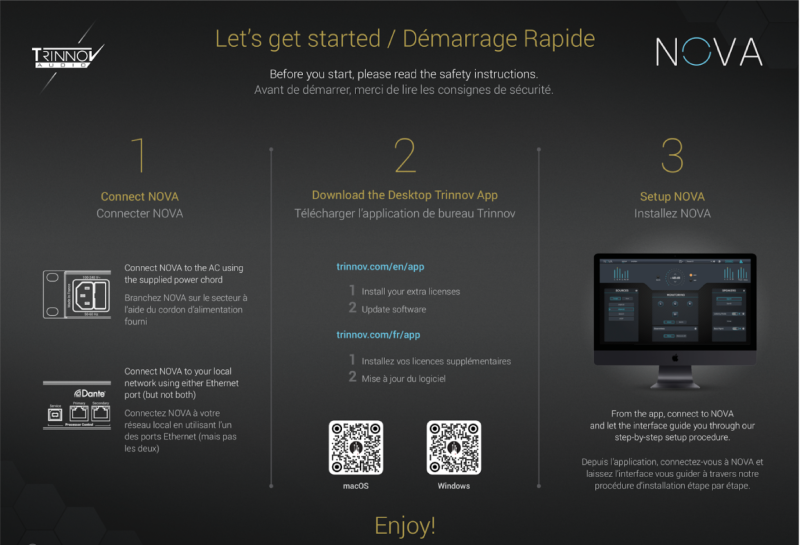
Out of the box, one of the first things you will be asked to do is to connect NOVA to your network and install the Trinnov desktop application.
CONNECT NOVA TO YOUR LOCAL NETWORK
For the initial setup, you will need to connect NOVA to your local network.
Indeed, accessing the user interface is only possible via the network.

Next to the power socket, on the left hand side of the rear panel, you will see a group of connectors labeled “Processor Control”, including two network ports with a Dante logo on top. Connect only one port.
By default, a single network port will be used both for Dante and controlling the processor.
In terms of connection, you have several options to connect NOVA to your workstation.
Ways To Connect Your Workstation:
Direct Connection
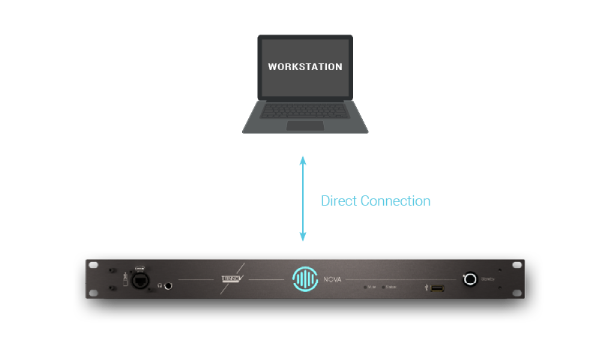
You can simply connect your NOVA to your workstation via an RJ45 cable. Provided that the OS on your computer is compatible with the AutoIP protocol, both machines should communicate straight away.
Connect Through A Router
In this very common configuration, the connection is not direct between the workstation and NOVA. Instead, you connect each of them to a router, typically your internet box.

Connect Through A Router Via A Switch
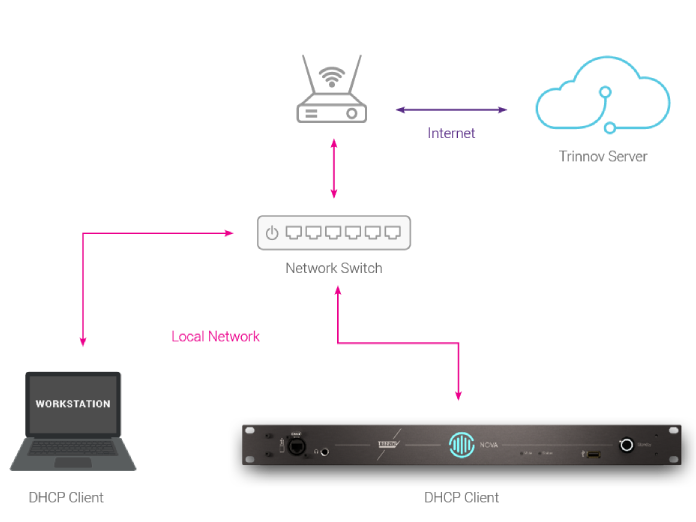
If you have a single network cable running to your studio, a Network Switch is necessary to connect multiple devices including the NOVA.
Connect Through A WiFi Switch
In this last exemple, you only run WiFi in your studio but still need a wired network connection to NOVA. The box you need is a WiFi satellite, which acts both as a WiFi client to extend your wifi connection, and as a network switch.

INSTALL THE DESKTOP TRINNOV APP
Next you need to install the Trinnov desktop application.
You can find a macOS version on the Trinnov website. Windows version will be available in the coming weeks.
The application is essential in many respects:
- It allows you to install the extra Optimizer licenses if you have ordered a NOVA 4 or NOVA 6. NOVA is delivered as a 2-channel version and extra licenses are pre-loaded to your unit by your reseller before shipping.
- It allows you to install software updates
- It allows you to access the user interface very easily
- It will make NOVA a EUCON compatible devices
- It will remove the need to run an extension USB cable in case you cannot plug La Remote directly into NOVA.
Dante Virtual Soundcard
To fully appreciate the various integration options, we need to talk about Dante Virtual Soundcard (DVS). DVS is a piece of software sold by Audinate, the Australian company behind the audio over IP protocol Dante.

Given what it does, it’s really inexpensive and we can only recommend it.
Consider DVS as a virtual audio interface on your workstation, which connects to an audio network hub and gives you access to every Dante device on the network.
NOVA (or any other Dante device) connects to DVS via a hub called Dante controller. This is a seperate piece of free software. From there DVS gives you access to NOVA I/Os (and other Dante devices) from your DAW as a virtual sound interface.

SPEAKER OUTPUTS VS OPTIMIZER LICENSES
Next, let’s elaborate on Optimizer licenses, which are different from speaker outputs.
In a nutshell, NOVA comes with a total of 24 available outputs that you can use to feed a studio monitor or a subwoofer.
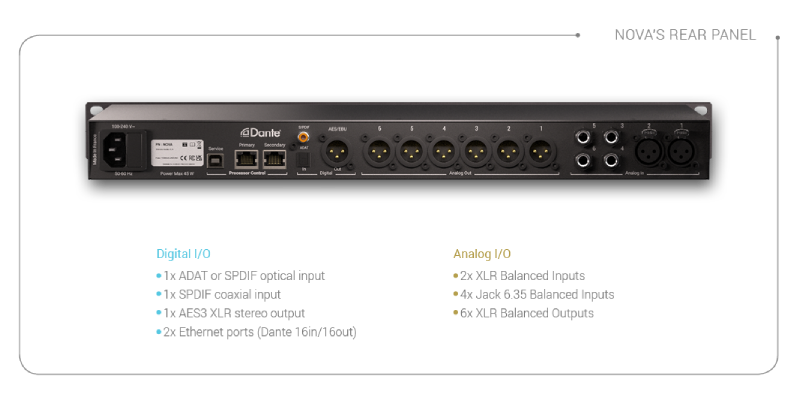
However, our sophisticated acoustic optimization system requires a lot of CPU, which is why NOVA is limited to a maximum of 6 optimization channels simultaneously, running at 192kHz. This explains the presence of 6 XLR outputs on the rear panel.
By default, NOVA is delivered as a 2-channel Optimizer, but can be upgraded to 6 channels with the purchase of 4 additional licenses. Licenses are purchased in multiples of 2.
For more information on the Trinnov NOVA, click below.
-
Product on sale
 Trinnov NOVA£4,250.00 (£3,541.67 ex VAT) – £6,999.00 (£5,832.50 ex VAT)
Leading the way
Shining a spotlight on the industry, identifying who uses our products. Continue to read more of our user stories.
User Stories


Latest News

NOVA goes Atmos: Trinnov’s Biggest Update Yet
Trinnov has released software version 2.1.3 for NOVA and it’s a significant one. The headline…


